
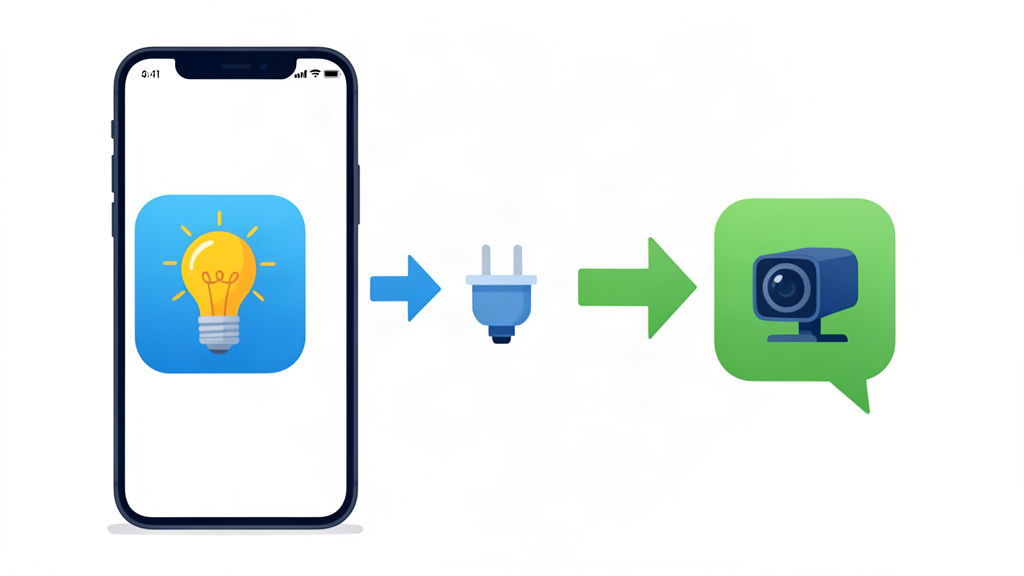
The Sensbi app for iOS is no longer supported and has been replaced by the Smart Life app. Both are Tuya-based apps, and a Tuya-based device can only be linked to one app at a time. That means your devices must be released from the old app before the new one can take them over. This guide walks through the options and how to add devices to Smart Life afterwards.
This guide is adapted from the community tutorial “[HowTo] Migrate your devices between Tuya-based apps” by smarthomesven on the Homey Community. Thanks to the author.
Choose a migration method
- Option 1: Delete your Home in the old app. This is the easiest method and resets everything at once.
- Option 2: Remove each device individually. Best if you only want to move some devices.
- Option 3: Manual reset. Use this for devices that are offline or unreachable in the old app.
Option 1: Delete your Home in the old app
Before you start, read this checklist carefully:
- Make sure every device is online and reachable in the app. Devices that are offline will not be reset until they next connect to Wi-Fi, at which point they reset automatically. Power on seasonal devices such as heaters and fans first to avoid surprises later.
- Cancel any subscriptions in the old app, such as energy saving, camera cloud storage, SMS/call services or AI services.
- Camera clips stored in cloud storage are lost when the Home is deleted. Download anything you want to keep first.
- Tap-to-run scenes and automations are lost and must be re-created in Smart Life.
- Rooms are lost, so you will need to organise your devices again.
- Integrations such as Amazon Alexa and Google Home are disconnected. Re-add them from Smart Life.
- Device settings such as custom names and icons are restored when the device is connected to the new app.
Then delete the Home:
- Open the old app.
- Go to the Me tab.
- Tap Home Management.
- Select the Home you want to delete.
- If you share the Home with family members, remove them first.
- Delete the Home from your account.
After deleting the Home
- All devices that were online enter pairing mode.
- Wake up battery-powered devices by triggering them (press a button, open a door sensor, etc.). They receive the reset message when they reconnect and then start pairing. Add them to Smart Life right away, because a device left in pairing mode drains its battery quickly.
- Devices that were offline start pairing as soon as they reconnect.
Option 2: Remove each device individually
Use this option to keep your Home or to move only some devices. The steps depend on which type of app you have.
Newer dashboard-style apps
- Open the app and tap the icon in the top-right corner (where your room names appear). Do not use the icons on the home dashboard, which only shows widgets and not all devices.
- Tap the device you want to remove.
- Tap the pencil or three-dot icon in the top-right corner, then choose Disconnect and confirm with Disconnect device.
Do not choose “Disconnect and wipe data”. That deletes your schedules, presets and other custom device settings.
Older-style apps
- Open the app and tap the device you want to remove.
- Tap the pencil or three-dot icon to open the device settings.
- Tap Disconnect and choose the regular disconnect option. Do not choose the wipe data option.
Repeat for every device you want to move.
Option 3: Manual reset
Use a manual reset when a device cannot be reached in the old app. It only disconnects the device from Wi-Fi. Your custom settings come back when you connect it to the new app. Common reset methods:
- Most devices: press the reset button with a paperclip.
- Lights: switch them on and off three times (on-off-on-off-on).
- Devices without a reset button, such as most smart plugs: hold the power button for about 6 seconds.
- Smoke alarms: press the TEST button quickly three times.
Adding your devices to Smart Life
With your devices in pairing mode, open Smart Life and tap the + symbol, then Add device. There are three ways to pair.
Bluetooth setup (easiest)
Works only with newer TuyaMCU-based devices.
- Tap + then Add device.
- The device is discovered automatically. You may need to grant permissions and turn on Bluetooth on your phone.
- Select your Wi-Fi network and enter its password. Tap Add next to each detected device and they will join the network and appear in the app.
Wi-Fi setup (EZ mode)
Works for both newer TuyaMCU-based and older ESP-based devices.
- Tap + then Add device.
- Choose any device labelled “BLE+WiFi” or “WiFi”. The exact type does not matter (cameras also offer a QR code mode).
- Follow the screens and choose Blinking fast when asked. If the LED blinks slowly, use AP mode below.
- The device is added to Smart Life. Repeat for each device.
Note: pairing times out after a few minutes. If the LED has stopped blinking, do the manual reset again.
AP mode
If EZ mode does not detect your device, AP mode often works. Put the device in pairing mode, then repeat the manual reset once more. The LED will blink more slowly, which tells you it is in AP mode. AP mode sets up one device at a time.
- Tap + then Add device. Do not connect your phone to the “SmartLife-XXXX” hotspot yet.
- Choose any Wi-Fi or Wi-Fi+BLE device from the list.
- Click through the pairing screens.
- Choose Blinking slowly when asked.
- Follow the prompts, connect to the device’s hotspot when the app tells you to, and finish setup. Tuya switches back to your home Wi-Fi automatically.
Repeat for each device, and try to add them all soon, since pairing mode eventually times out.
Download Smart Life
Smart Life is available on the App Store. See our Mobile App page for the latest app information.
Questions? Contact us at [email protected].
1 Comment for “How to migrate your devices from the Sensbi app to Smart Life”